VLLO is a video player & editor application offered by vimsoft. It has more than five million downloads on the Play Store. Edit your video easily with VLLO’s editing tools including chroma-key and hundreds of outstanding effects, filters & huge collection of music.
Overview
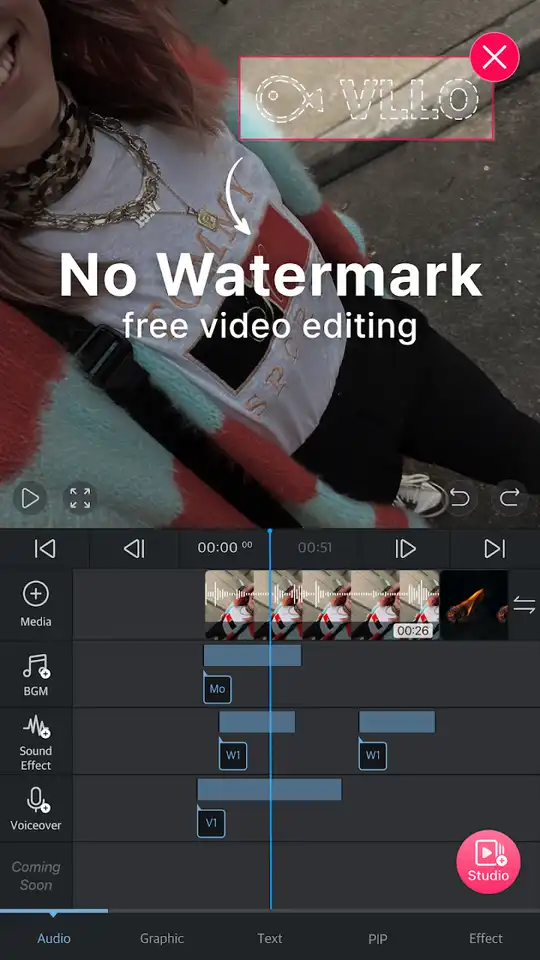
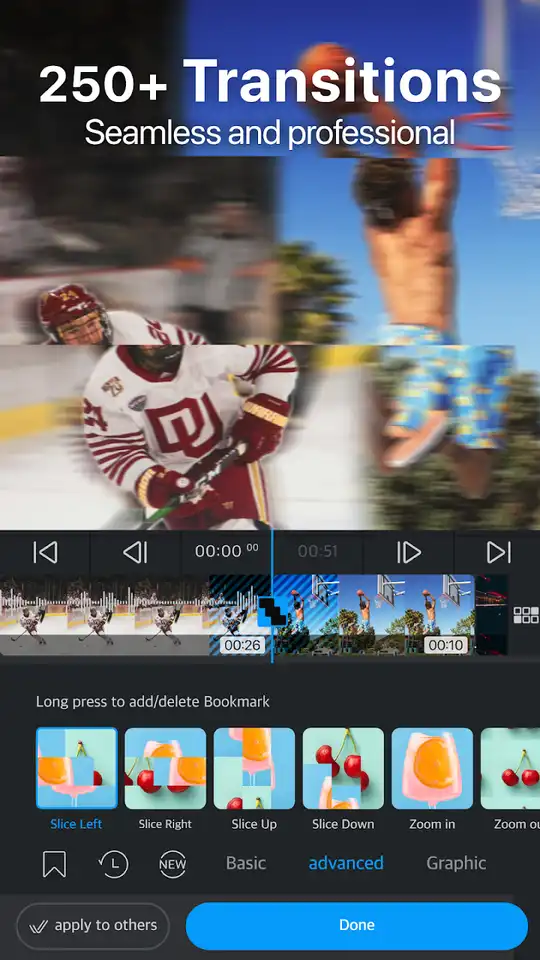
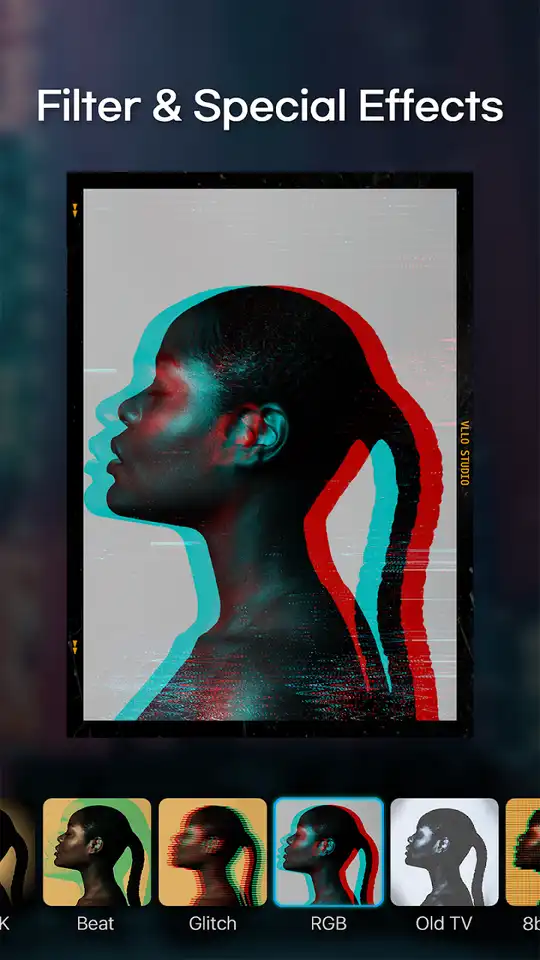
VLLO is an video editing application that comes with all basic editing tools as well as some of the advanced tools such as keyframe animations & chroma-key. To upload any video on social apps, editing is the most important part to make them beautiful, outstanding & eye-catching. And VLLO helps you in that. With it, you can split, trim & merge clips. Adjust the video color attributes such as brightness, saturation, shadow, hue, contrast etc. Add blue or mosaic effect on any part of the video. You can also add stickers, texts, labels, PIP images, videos & gif. It supports upto 4K resolution export.
Easy-to-Use Interface
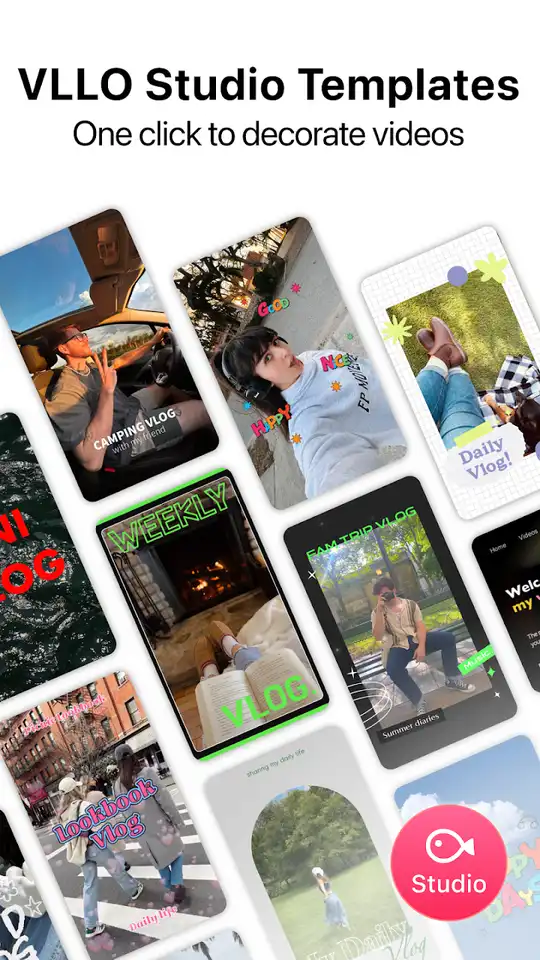
It has an easy-to-use interface. On the homescreen, it displays all of your projects in grids on the lower half of the screen and the option to start a new project on the upper half of the screen. When you start a new project, it shows all your media files in a section. You can change the sections to show only videos, photos or gifs. In the editing interface, it displays five options: Audio, Sticker, Text, PIP & Filter at the bottom bar. Tap on any of these options to see the related tools. Tap on the timeline and it will spawn a bar including all the related tools like trim, merge, split, speed etc.
Add Background Music or Record Voice-Over
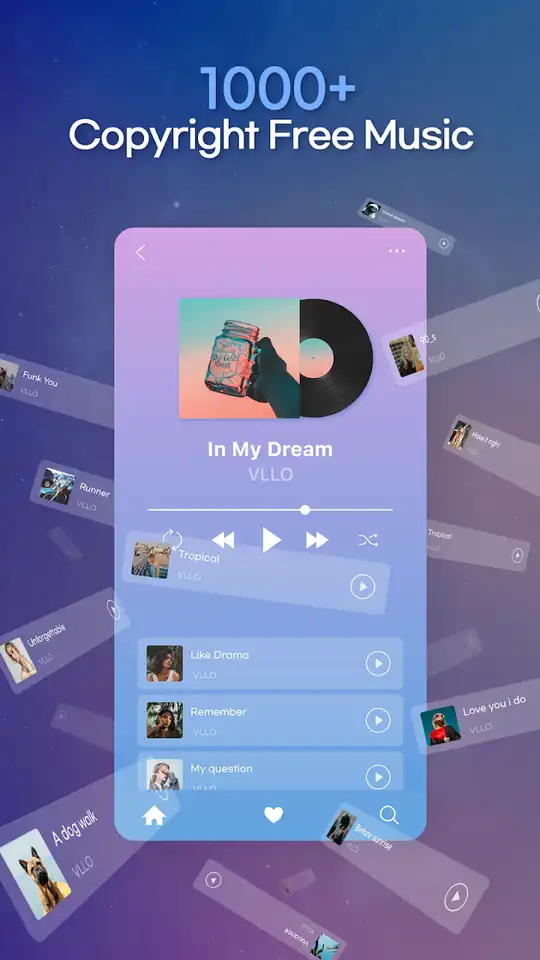
It includes a collection of over 200 background music of many types. It has hundreds of sound effects to add at any point. If you want to add any song that is in your local storage, you can do that too. It can also extract audio from any other video. Then you can use that in your video. Or add dialogs via voice-over feature while editing.
Keyframe Animation
In this app, you can create your own animations and add in the videos. Select any clip and activate the “Partial Setting”. Then add points at any frame. At these points, you can resize the video, change layout, opacity & blur. When you play the video, this feature will apply these changes at a constant rate from one point to another creating animations.
Chroma Key
Chroma key is the best feature. With this feature, you can create outstanding videos with amazing background. Add a video or photo that will work as the background. Then import the main video with a single-color background as the overlay. Tap on the second video and tap on the chroma key tool. Then select the color the same as the main video’s background. It will remove that color from your main video and the first video will be visible.